
Have you ever experienced moments when you were about to text someone on WhatsApp, but suddenly the screen no longer responded? If you are among those asking how to fix unresponsive touch screen android, your concern is shared by many. Very often this happens in Indian households – sweaty hands during the summer time, screen protectors, power cuts while charging, or kids dropping the phone on the floor.
In this guide, I will take you through easy repairs I have personally tested before going to a service centre —no technical skills required.
Why Your Android Touch Screen Stops Working
From what I’ve seen (and experienced), these are the most common reasons:
- Small cracks or scratches you barely notice.
- Cheap tempered glass or thick phone cases.
- Moisture from cooking, rain, and bathroom steam.
- Phone overheats during charging (especially during power cuts).
- Software glitches after updates or new apps.
- Very low storage or RAM.
Also Read: iPhone Air Teardown Report Reveals Apple’s Secret to a Super-Thin Design
How to Fix Unresponsive Touch Screen Android: Step-by-Step Troubleshooting
#1. Clean the Screen & Remove Screen Guard
Many times, the problem isn’t the phone — it’s dust, oil, or a damaged screen guard.
- Remove the tempered glass and case
- Wipe the screen with a dry, soft cloth
- Make sure your hands aren’t wet or oily
This once fixed my mom’s phone — she thought the screen was dead, but it was just coconut oil from cooking!
#2. Force Restart Your Android
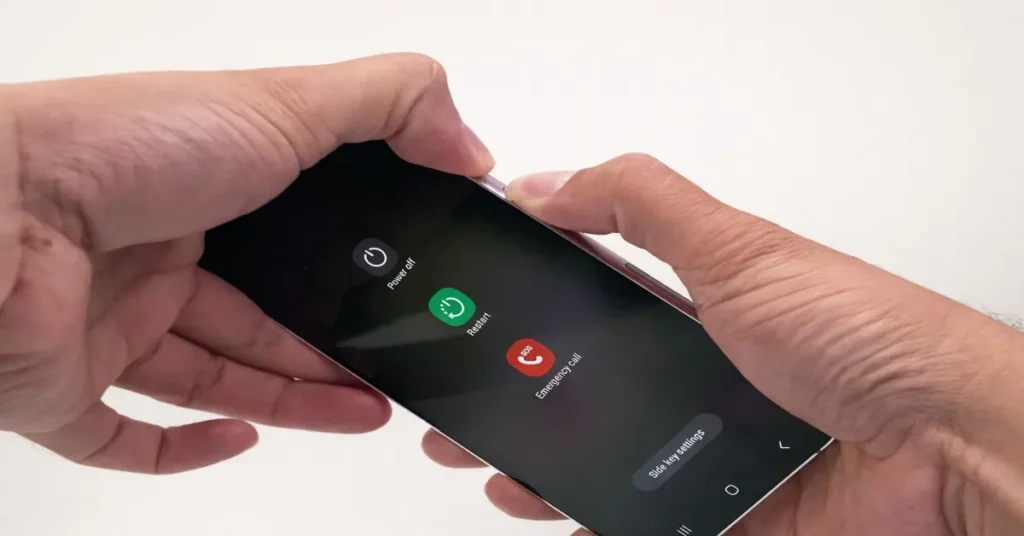
Your display is not responding. Restart it, even without touching it.
Volume Down and Power button should be pressed together and held for 10–15 seconds. For some handsets, the Power or Side button is the only one you need.
This makes the phone shut down, but start anew right away.
#3. Check for Moisture or Water Damage
Did your phone fall in water or get wet in the rain?
- Switch it off immediately
- Remove the SIM, memory card, and cover
- Wipe it dry and put it in raw rice or silica gel for 24 hours
- Don’t use a hair dryer or keep it in sunlight — that makes it worse
#4. Restart in Safe Mode (To Check Faulty Apps)
Sometimes newly installed apps cause screen freezing.
How to enter Safe Mode:
- Long press Power button
- When options appear, long-press “Power Off”
- Tap Safe Mode when it appears
- If the screen works now → uninstall recent apps
#5. Free Up Storage & RAM
Low storage can make the touchscreen lag or stop responding.
- Delete unwanted videos, memes, and duplicate photos
- Clear WhatsApp backup (Settings → Storage → Clear Chat Backup)
- Uninstall heavy apps like BGMI or Instagram (if needed)
#6. Turn Off Developer Mode / Accessibility Features
If anyone turned on TalkBack, Gesture controls, or Developer Options by mistake, the screen may act weirdly.
- Go to Settings → Accessibility → Turn Off TalkBack
- Go to Settings → System → Developer Options → Toggle it Off
#7. Software Update or Factory Reset
If nothing works, update your Android system:
- Settings → Software Update → Download & Install
- If the screen is still dead and you’ve backed up your data:
- Settings → System → Reset → Factory Reset
Also Read: Why Is My Phone Not Charging iPhone?
Quick Fix Checklist
| Problem | Quick Solution |
|---|---|
| Screen not responding | Force restart (Volume Down + Power) |
| Works only sometimes | Safe Mode + uninstall new apps |
| After a water spill | Switch off, dry in rice for 24 hours |
| Touch delay or slow response | Free up storage and RAM |
| Only half the screen is working | Try touchscreen test codes or screen replacement needed |
Also Read: Google Pixel 10 Pro
FAQs
How do I get my touchscreen to work again?
Use a soft cloth to clean the screen, and also remove the dust and bubbles from the screen protector. If the screen is still not responding, restart your phone or take out the battery if that is an option. For Android phones with water or fall damage, it is best to go to an authorised service centre. Backup of data is a must before that.
How to fix a phone screen that is not touching?
Restart your phone or force restart it to reset the system. Check for apps that are the ones causing the issue by booting into Safe Mode. Don’t push the screen too hard because it might damage the digitiser. A damaged or swollen screen caused by battery issues can only be fixed through repair.
How do I unfreeze my touch screen?
To force restart, hold the power button for 10-15 seconds on most Android devices. If it does not work, plug your phone into a charger and try again after a few minutes. Sometimes low battery, overheating, or too many apps running in the background can make the screen unresponsive. Therefore, keep your device updated to avoid such problems.
How to force restart a frozen screen?
On most Android devices, you will be using the Power + Volume Down buttons, which you need to press and hold for a period of 10 to 15 seconds together. Some phones, like Samsung or Xiaomi, on the other hand, may use Power + Volume Up. The system is reset by this method without data deletion. Do this only when the display is totally unresponsive.
Can a touch screen lose sensitivity?
Dust, humidity, cracked glass, or low-quality screen protectors can all contribute to the touchscreen losing its sensitivity. Hot weather, outdated software, and battery problems can also make the touch response slow. Recalibrating the touch settings or doing software updates can take care of the minor issues. If the hardware is broken, you’ll have to get it replaced.
Conclusion
You won’t usually need to spend a lot of money on repairs for the majority of touch problems. In most cases, just a simple restart, removing the screen protector, or Safe Mode will resolve the issue. However, if the screen is cracked, water-damaged, or completely non-functioning, do not wait — go to an authorised service centre.
