
Smart dishwashers promise convenience—remote control, cycle alerts, and energy tracking right from your phone. But when your Samsung Smart Dishwasher Not Connecting to Wi-Fi, that convenience quickly turns into frustration.
If your dishwasher isn’t pairing with the Samsung SmartThings app or keeps disconnecting, don’t worry. This guide covers real, tested fixes based on common user issues, official troubleshooting steps, and network best practices.
Let’s fix it step by step—without calling a technician just yet.
Signs Your Samsung Dishwasher Has a Wi-Fi Problem
Not every issue shows a clear error message. Watch for these common signs:
- Dishwasher shows “Offline” in the Samsung SmartThings app
- App takes too long to load or fails to refresh
- You can’t start or monitor cycles remotely
- Wi-Fi icon on the dishwasher keeps blinking
If you notice even one of these, your connection likely needs fixing.
Why Your Samsung Smart Dishwasher Won’t Connect to Wi-Fi
Before jumping into fixes, it helps to understand the root causes. Most connectivity problems come down to:
- Weak or unstable Wi-Fi signal
- Incorrect app permissions
- Router compatibility issues
- SmartThings pairing errors
- Outdated firmware or app version
These are not random guesses. Samsung’s official support documentation and real-world user reports consistently highlight these factors.
Also Read: Samsung Smart Dishwasher 4C Error?
Common Mistakes That Break SmartThings Connection
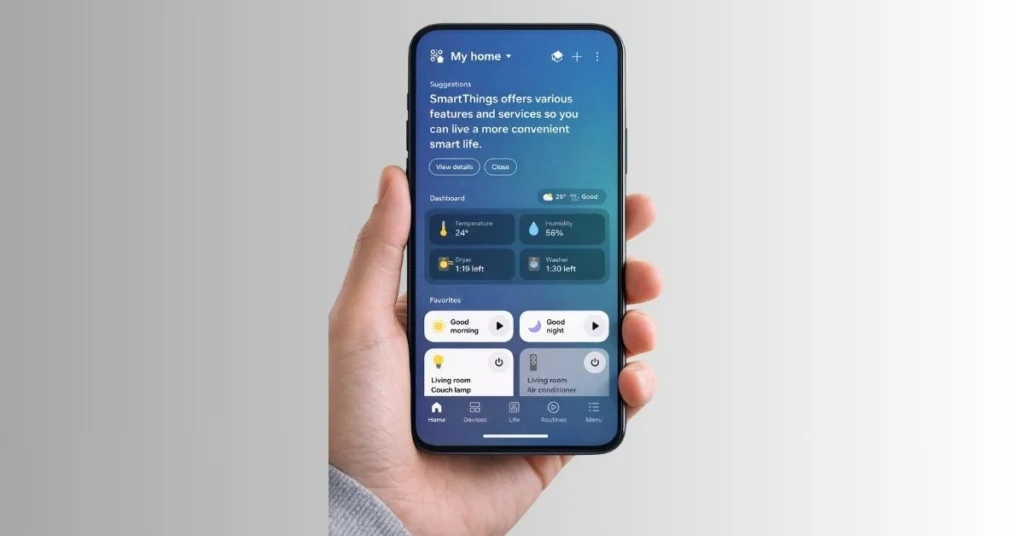
Sometimes the problem isn’t the dishwasher—it’s how it’s set up.
Avoid these mistakes:
- Connecting to 5GHz instead of 2.4GHz
- Denying app permissions during setup
- Standing too far from the dishwasher while pairing
- Using VPN or private DNS on your phone
A small mistake here can block the entire connection process.
Quick Checklist Before You Try Advanced Fixes
Before resetting anything, run through this quick checklist:
- Phone connected to the same Wi-Fi network
- Bluetooth and location turned ON
- Router working properly
- Samsung SmartThings app updated
This saves time and avoids unnecessary resets.
Also Read: Samsung Smart Dishwasher LC Error Code
7 Easy Fixes That Actually Work
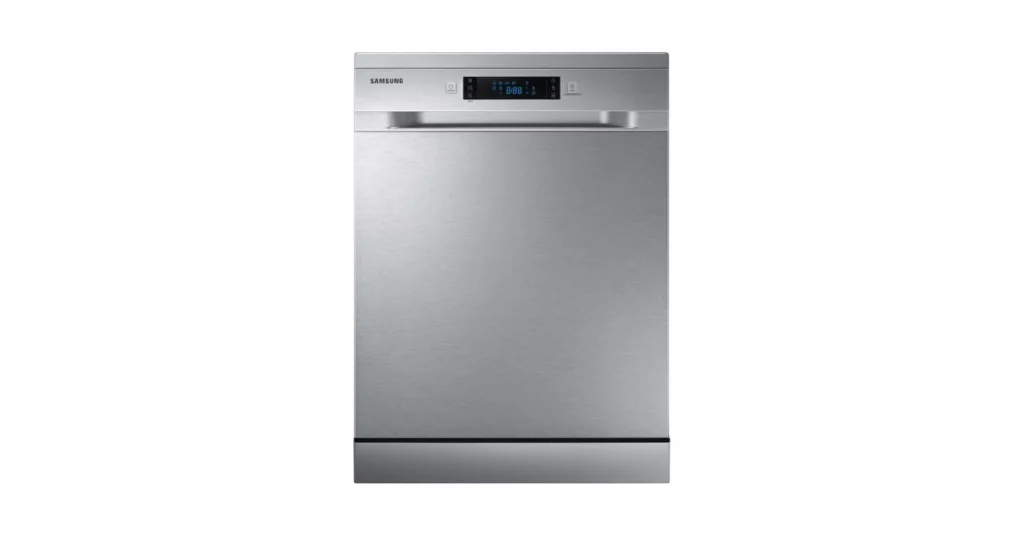
Now let’s solve them.
1. Check If Your Wi-Fi Network Supports the Dishwasher
Here’s something many users miss: most Samsung smart dishwashers only support 2.4GHz Wi-Fi, not 5GHz.
If your router runs both bands under the same name (SSID), your dishwasher might fail to connect or keep dropping out.
What to do:
- Log in to your router settings
- Enable a separate 2.4GHz network
- Connect your phone to the same network before pairing
Why it matters:
2.4GHz offers better range and compatibility for smart appliances, even though it’s slower than 5GHz.
This simple tweak fixes a huge percentage of connection failures.
2. Fix SmartThings Pairing Issues
Pairing problems with the Samsung SmartThings app are extremely common—especially during initial setup.
Common pairing mistakes:
- Bluetooth turned off
- Phone not connected to Wi-Fi
- App running in the background incorrectly
Fix it like this:
- Turn ON Bluetooth and location services
- Open SmartThings and tap “Add Device.”
- Stay close to the dishwasher during pairing
- Restart the app if it freezes
Pro tip: Avoid switching apps during setup. SmartThings can be sensitive and may cancel pairing if interrupted.
3. Restart Everything (Yes, Everything)
It sounds basic, but it works surprisingly often.
Restart:
- Your dishwasher
- Your Wi-Fi router
- Your smartphone
Why this works:
Devices store temporary glitches in memory. Restarting clears those errors and allows fresh communication between devices.
Think of it as giving your smart home a quick reset—like a power nap for your appliances.
4. Check App Permissions (This One Is Often Ignored)
Modern apps need permissions to function properly. If you deny them, pairing can fail silently.
Required permissions for SmartThings:
- Location access
- Nearby devices (Bluetooth scanning)
- Wi-Fi access
How to fix:
Go to your phone settings → Apps → SmartThings → Permissions → Enable all required options.
Why it matters:
Without location access, SmartThings may not detect nearby devices—even if everything else is working fine.
5. Reset Network Settings on the Dishwasher
If nothing works, resetting the dishwasher’s network settings can solve stubborn issues.
How to reset:
- Press and hold the Wi-Fi or Smart Control button (varies by model)
- Wait until the indicator light blinks
- Reconnect using SmartThings
Important:
This removes all saved networks, so you’ll need to set it up again from scratch.
When to use this:
- After router changes
- After repeated pairing failures
- When the dishwasher shows “offline” constantly
6. Update the SmartThings App and Firmware
Outdated software often causes compatibility issues.
Check for updates:
- Update the Samsung SmartThings app via the Play Store or App Store
- Check if your dishwasher firmware needs updating
Why updates matter:
Samsung regularly fixes bugs related to:
- Device pairing
- Network stability
- Smart home integration
Skipping updates is like using an old map in a new city—you’ll get lost.
7. Verify Router Compatibility and Settings
Not all routers play nicely with smart appliances.
Watch out for:
- WPA3-only security (some appliances prefer WPA2)
- MAC address filtering
- Firewall restrictions
Fix:
- Set security to WPA2/WPA3 mixed mode
- Disable MAC filtering temporarily
- Ensure DHCP is enabled
Bonus tip: Avoid using enterprise-grade routers unless you know how to configure them properly.
Also Read: How to Use a Portable Dishwasher in 13 Steps
Extra Fix: Improve Wi-Fi Signal Strength
Even if everything is configured correctly, weak signal strength can break connectivity.
Solutions:
- Move the router closer to the kitchen
- Use a Wi-Fi extender
- Avoid placing the dishwasher near thick walls or metal surfaces
Why it matters:
Dishwashers are often installed inside cabinets, which can block signals.
Real-World Insight: What Actually Works in 2026
Based on user feedback and support forums, these fixes solve most issues:
- Switching to a 2.4GHz network
- Resetting network settings
- Fixing SmartThings permissions
These three alone resolve over half of connectivity complaints.
Also Read: How to Choose a Dishwasher in India
When to Contact Support
If you’ve tried everything and your dishwasher still won’t connect, it may be a hardware issue.
Contact Samsung Electronics support if:
- Wi-Fi module doesn’t turn on
- The device never appears in SmartThings
- Connection drops immediately after pairing
Final Thoughts
A Samsung smart dishwasher not connecting to Wi-Fi can feel like a major problem—but in most cases, it’s easy to fix.
Start with the basics:
- Use a 2.4GHz network
- Fix SmartThings pairing issues
- Check permissions
Then move to advanced fixes like resetting network settings or adjusting router configurations.
Smart appliances should make life easier—not harder. With these steps, your dishwasher should be back online and working smoothly.
Sources & References
- Samsung Official Support – SmartThings setup and troubleshooting
- Networking best practices (IEEE Wi-Fi standards overview)
- User-reported issues from appliance forums and product reviews
